

TV playout with AI
TV programming that builds itself.
Set the music rules and LOREL picks videos, fills the queue and starts scheduled shows. The AI can invite viewers to write in, respond on screen and help fulfil music requests.
You set the format. Playout builds the queue.
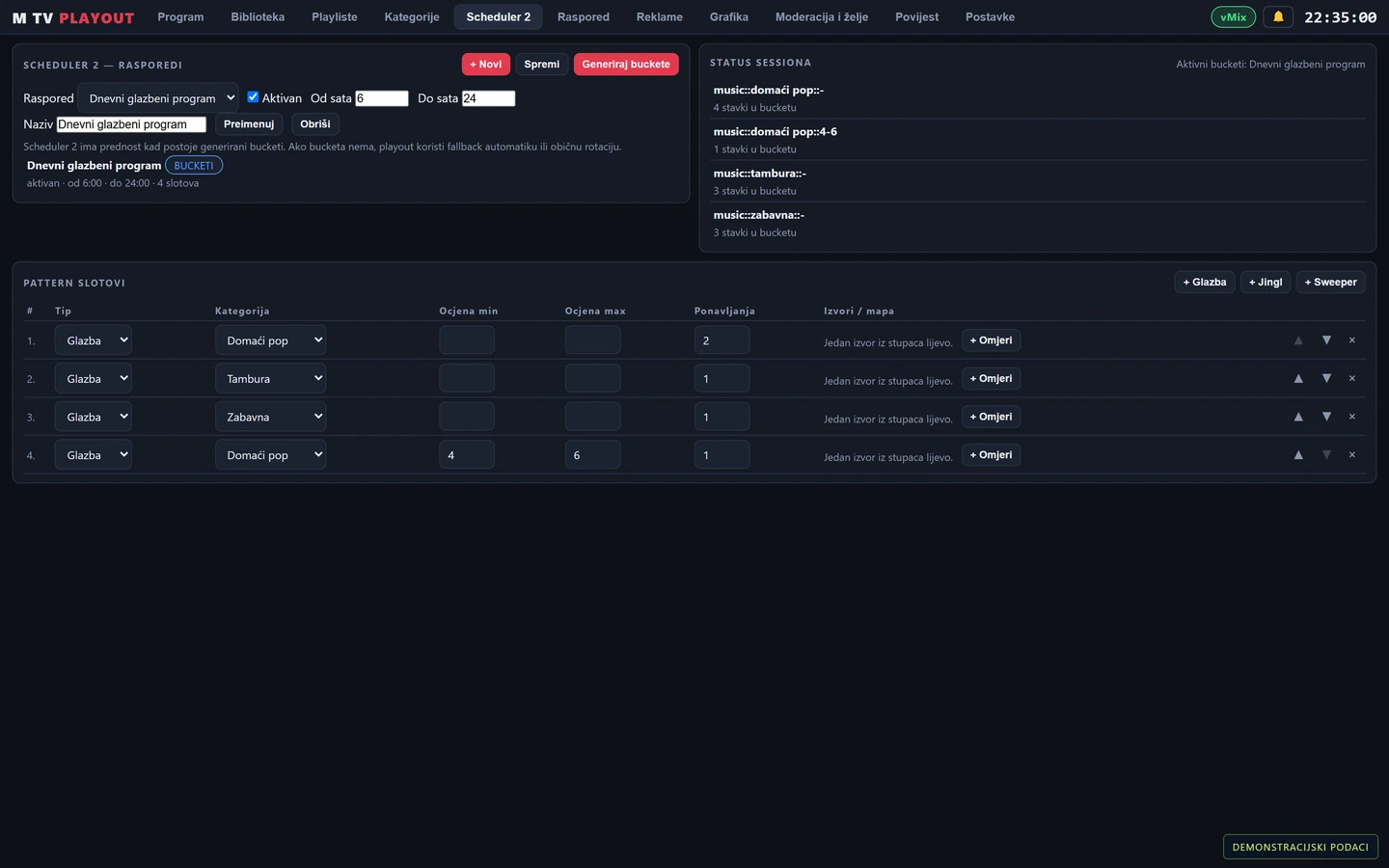
Set when the pattern applies and the order of genres, jingles and other steps in Scheduler 2. LOREL picks videos from your library and fills the queue while applying track and artist repeat rules.
Sample daytime rotation from 06:00 to 18:00
- 2 ×Local pop
- 1 ×Tamburica
- 1 ×Jingle
- 1 ×Easy listening
Schedule the news in a few steps.
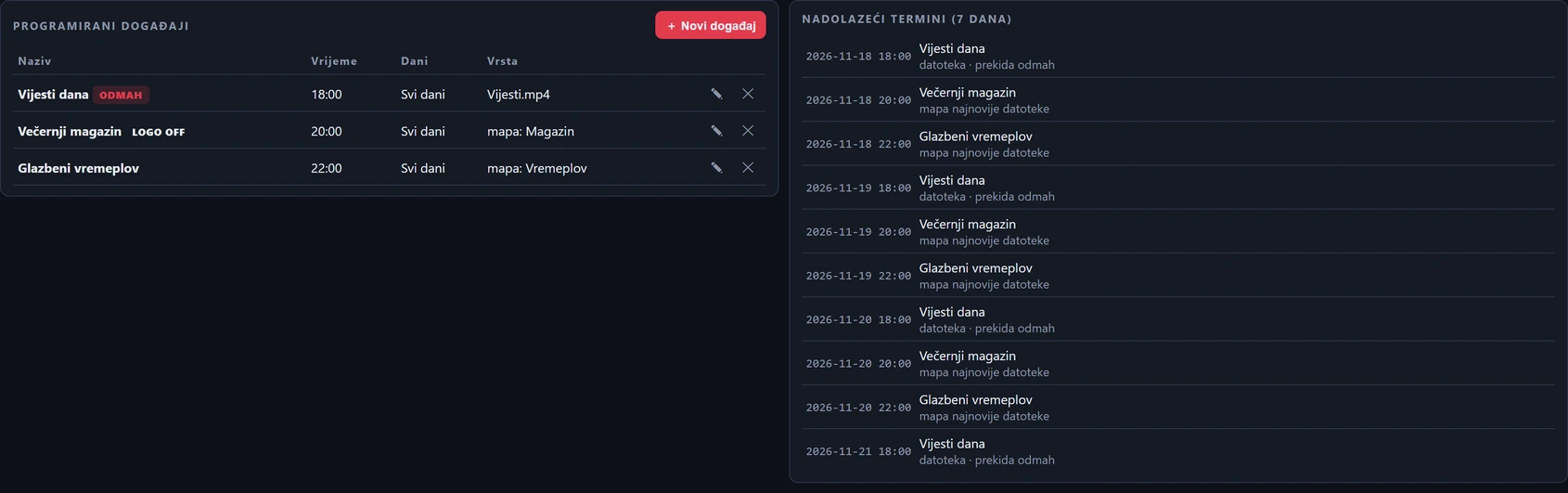
Open New event in Scheduling, choose the content and set the time. For example, LOREL can play the latest news bulletin from a folder every day at 18:00.
Choose a source
A video file, a saved playlist or the latest file in a folder.
Set the time
Run once, daily or on selected days. Start at a fixed time or let the current video finish first.
Add a lead-in and sign-off
Optionally add a jingle before and after the show. See upcoming events in the daily schedule.
An AI presenter that engages with viewers.
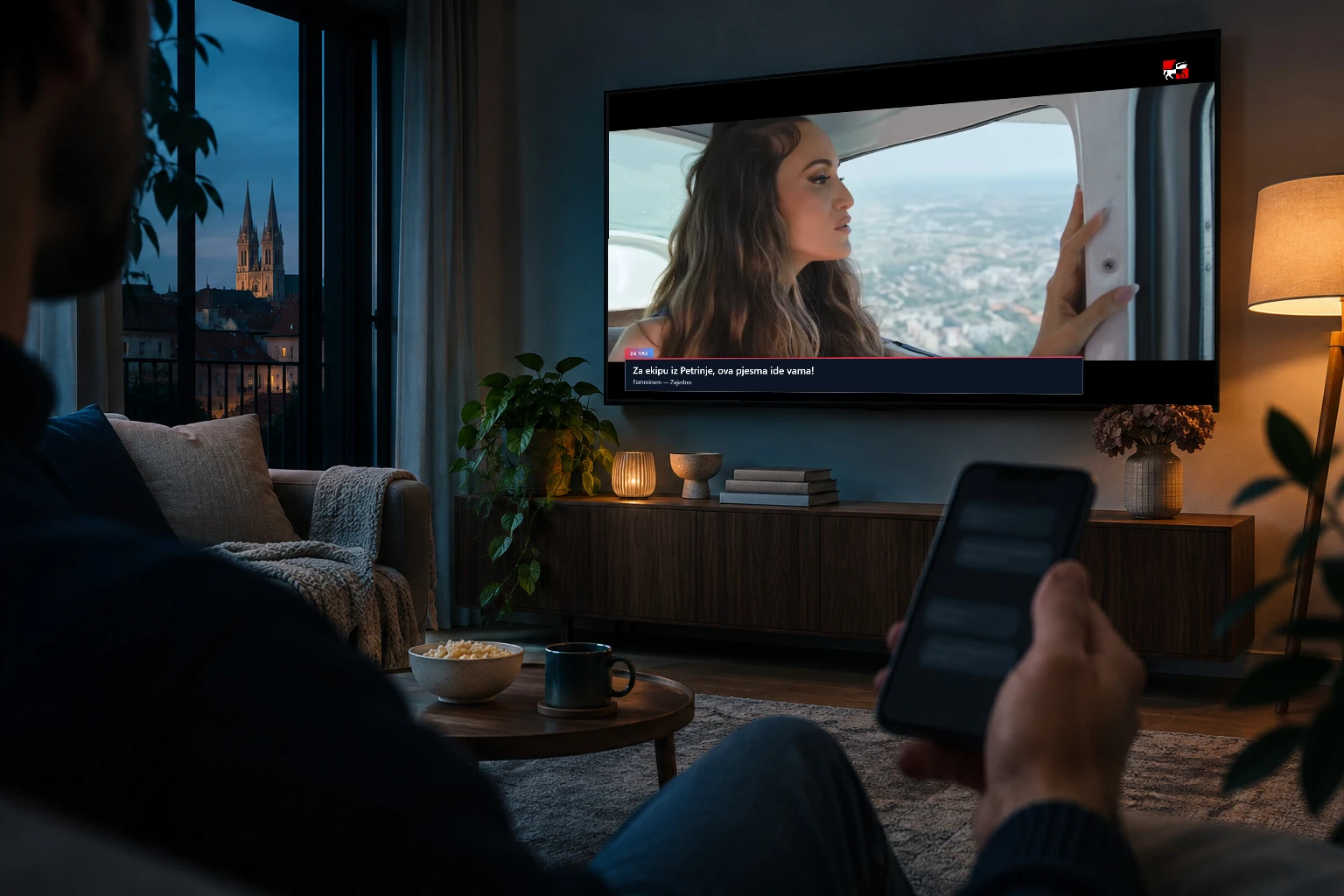
The AI presenter can invite viewers to write in, respond to a displayed message and introduce a music request with on-screen text. You set the style, frequency and when messages need an operator’s review.
Viewers send a request
Viewers write in via connected SMS or WhatsApp. The AI identifies the artist, title and dedication.
Playout finds a slot
The AI suggests a recording from your library. An exact match can be queued automatically. The operator reviews other requests.
The response goes on screen
Viewers can see an acknowledgement. The dedication appears when the selected video actually starts.
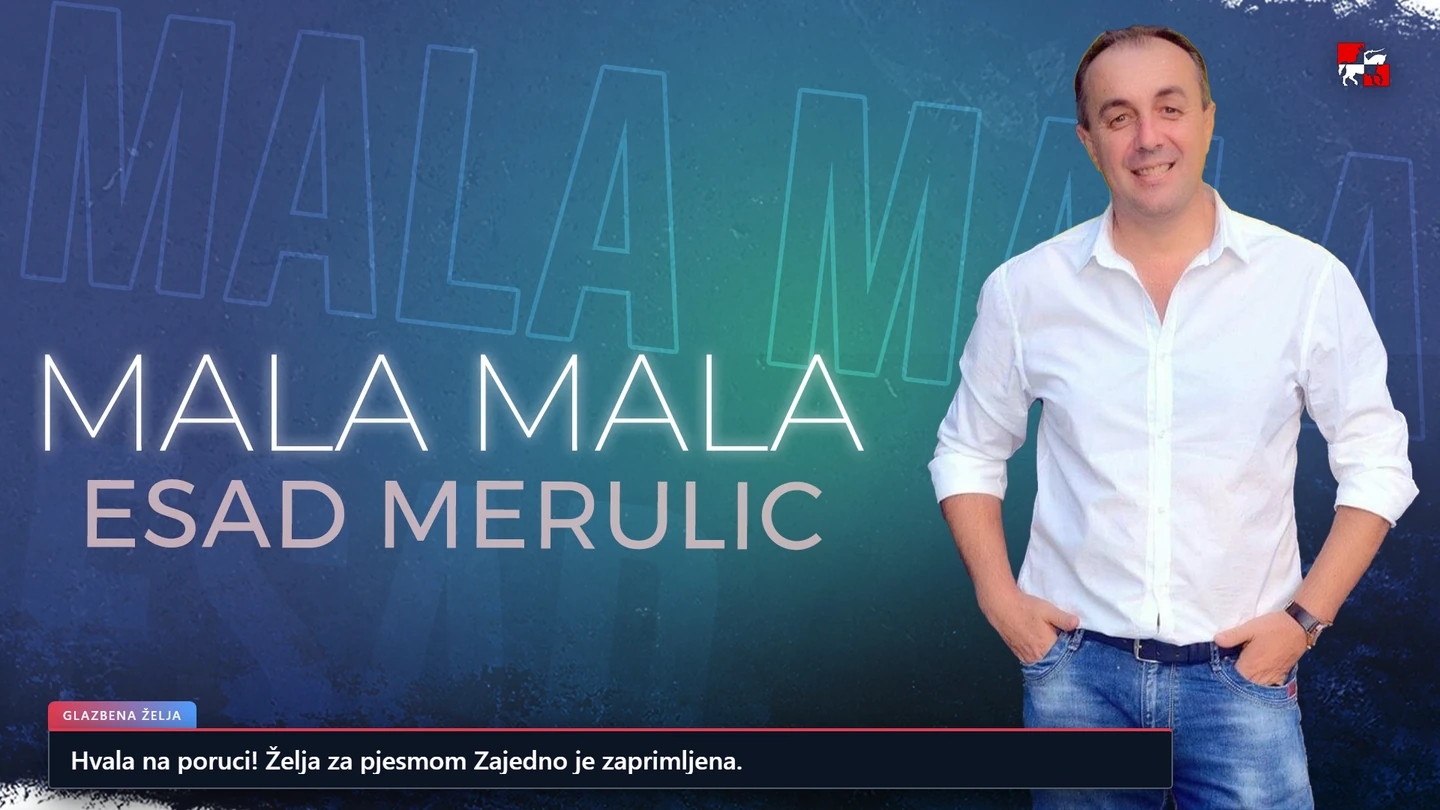
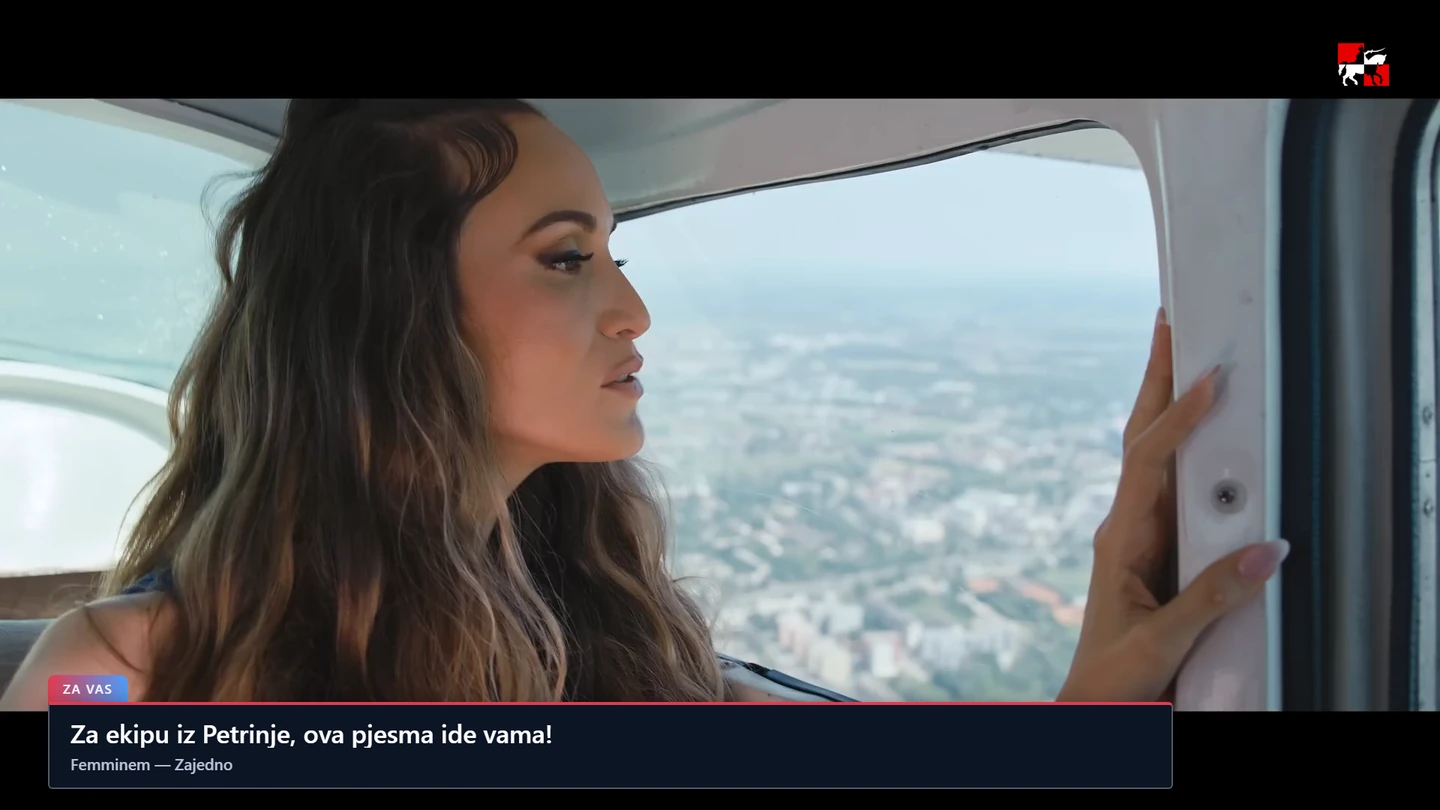
Sample messages rendered in the original EKRAN layer. SMS, WhatsApp and AI require connected services.
Your news website on the TV screen.
Connect EKRAN to your RSS feed or WordPress site. Show headlines, photos and story text next to the video, with a channel logo and song titles over the output.
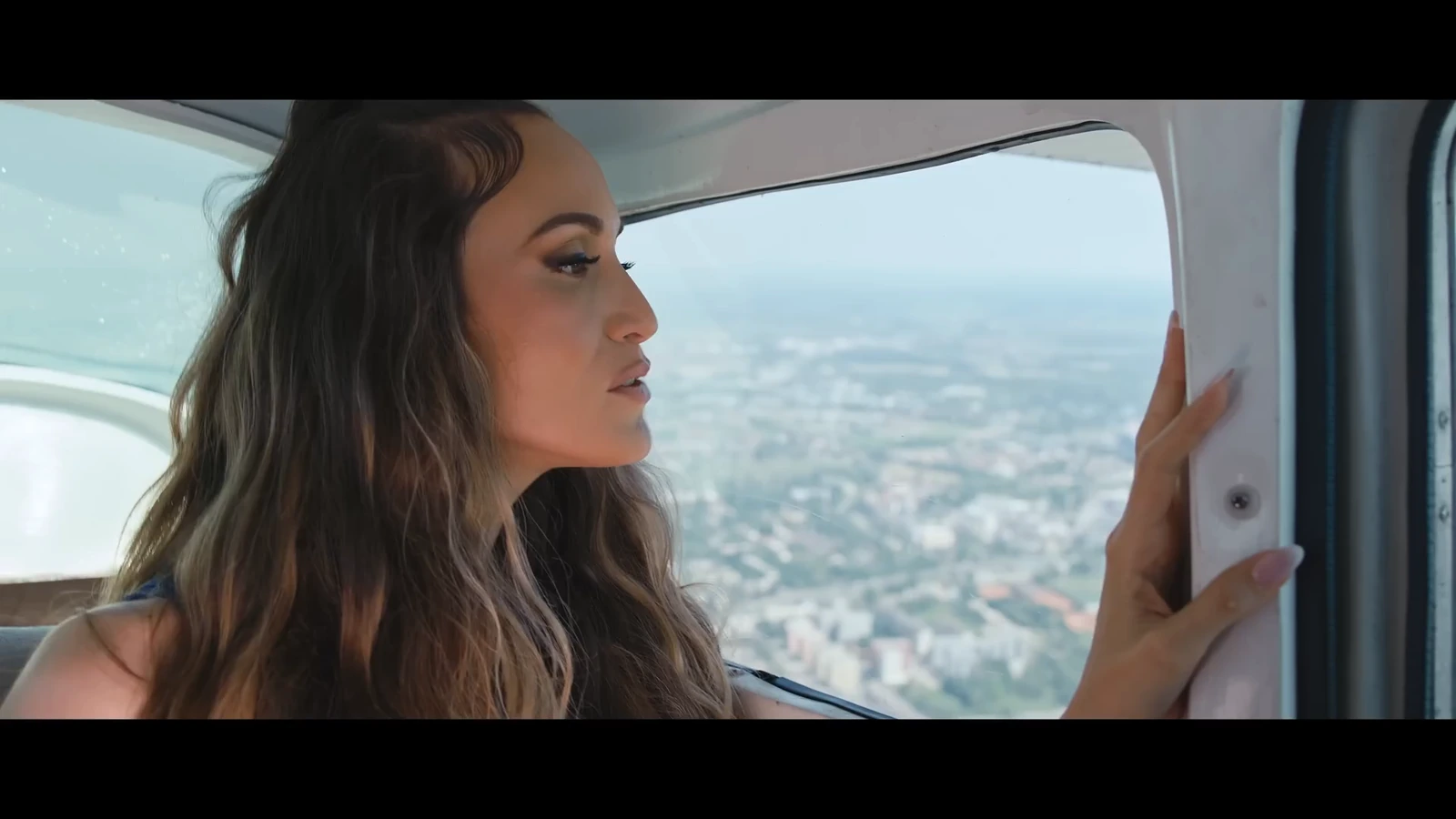
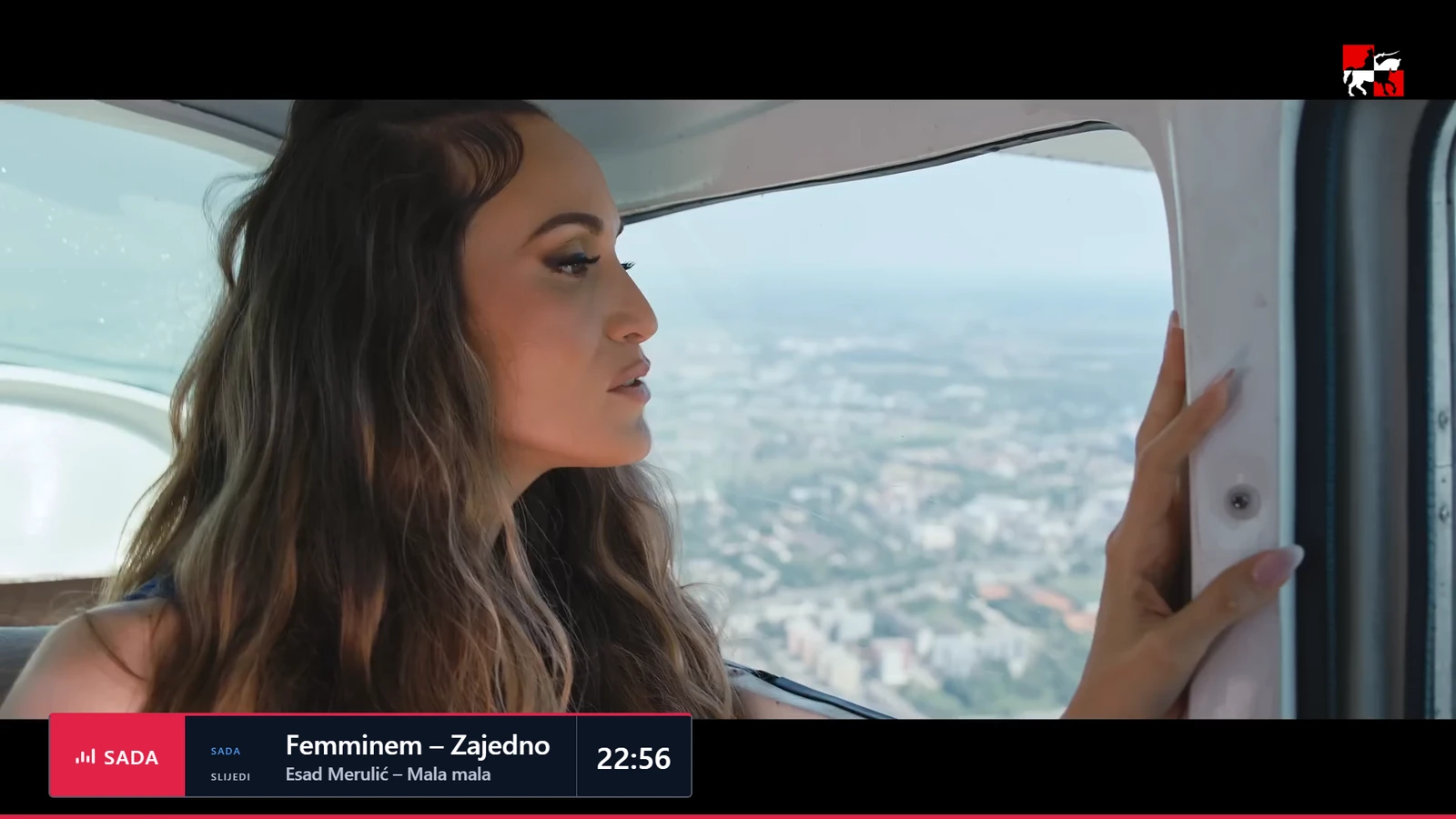
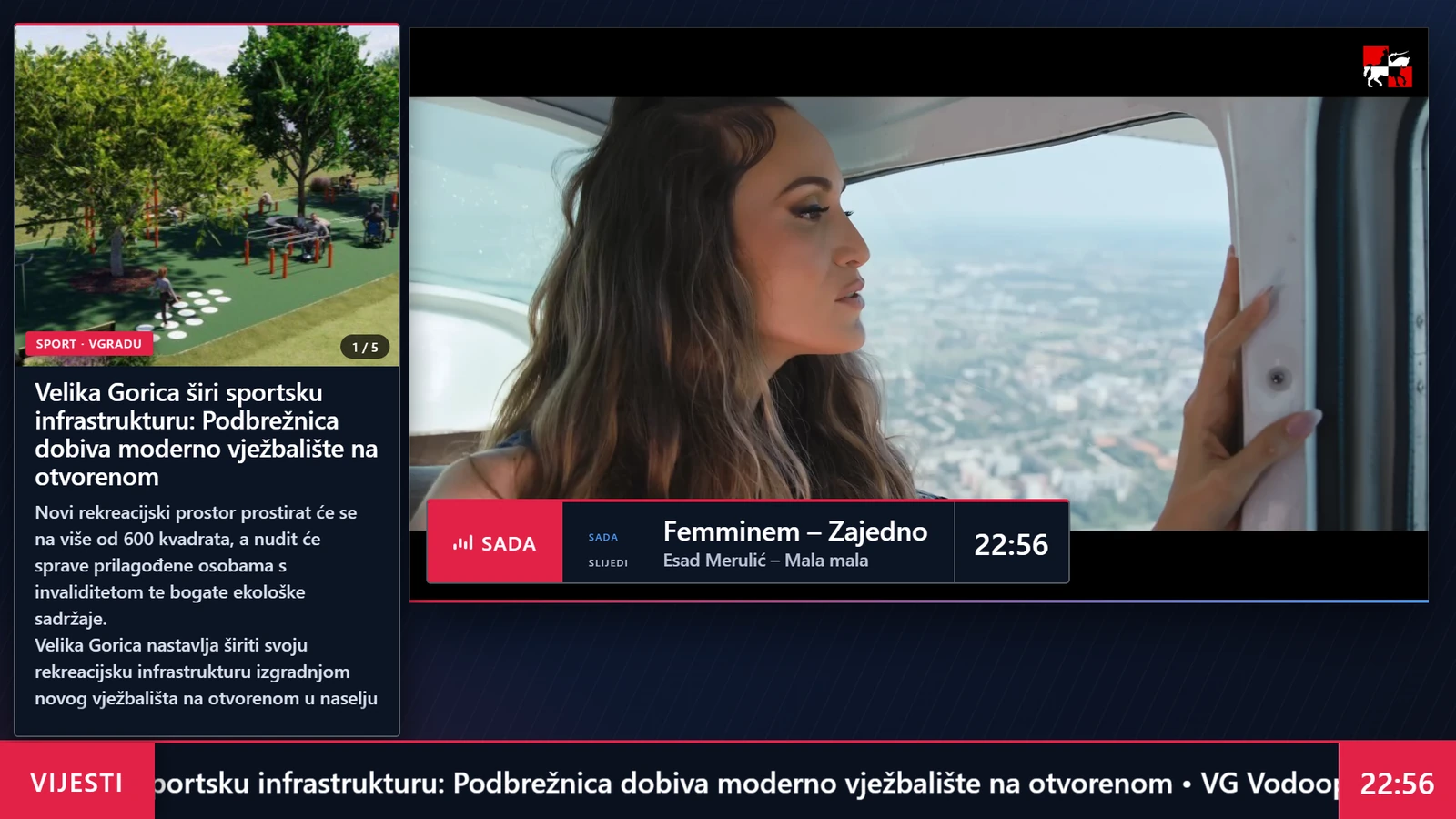
Frames from a local vMix test. Femminem – Zajedno. The archive news photo is credited to Gorica.hr.
News source
Choose the website and the information to import. The example uses an archived V’Gradu story.
Channel layout
Position the logo, song title, ticker, weather and news panel.
When it appears
Set a time, interval or content type to trigger the layout. The music video can remain visible beside the news.
What’s on now, and what’s next?
Watch what’s on air, what’s ready to play next and which events are coming up, all in your browser. The operator can insert an item or take over the queue whenever needed.
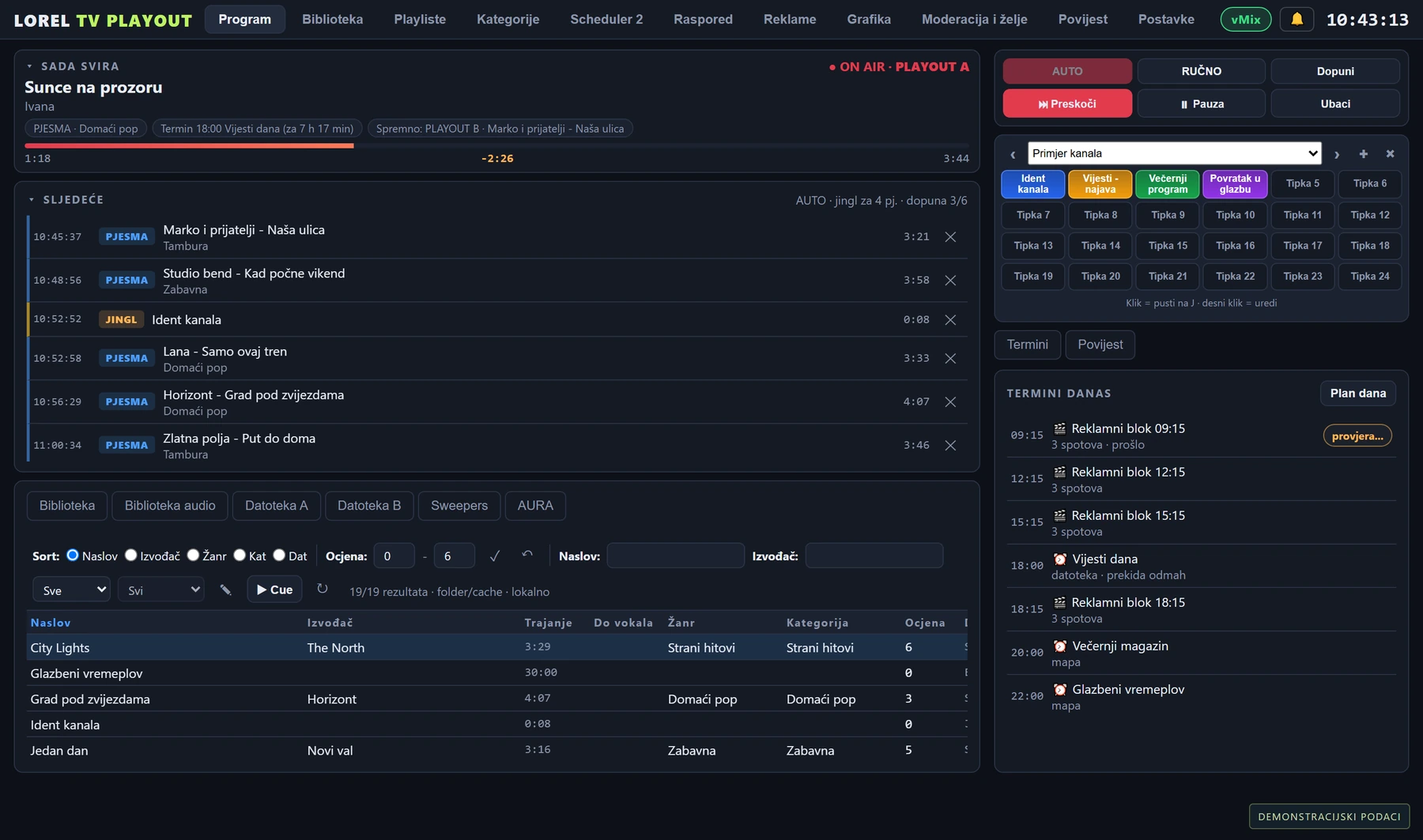
Library and Cue
Import media from folders, edit metadata, find titles and check them before they go on air.
Jingles and announcements
Insert an item into the queue or trigger a station ident or saved jingle from the Soundboard.
Advertising and as-run reports
Plan breaks and campaigns. Export a CSV or PDF report from the playout history.
How would your channel run?
Use the same automation to fill the hours between local shows, launch a TV channel alongside a radio station or run a full-day themed channel.
Small TV station
Play music between shows, pick up the daily news from a folder and run scheduled ads. Show news from your website beside the video.
Radio station launching a TV channel
Build a television schedule from your video library. With a connected audio catalogue, a track without a video can play with a TV visual.
Music or themed channel
Create separate rotations for different times of day, schedule themed blocks and use the AI presenter for evening requests.
What do you need to get on air?
Start with a Windows PC, vMix, your media library and station logo. Open the control interface in your browser and connect Playout and EKRAN to vMix.
Media
Prepare a few test videos, a jingle, a show and media paths that vMix can access.
Rules
Use your typical schedule to set up music rotation, events and the EKRAN layout.
Test run
Check video, audio, transitions, scheduled events and restart behaviour on your equipment.
What would your channel look like?
Pick one music video, one scheduled event and one news story for the demo. We’ll walk through what the operator does and what viewers see.